Get the SalesMere app on your phone.
Your team gets an alert on the phone when a customer is waiting, and can reply from the phone. SalesMere appears as an icon on your home screen and opens full screen, like any other app.
গ্রাহক অপেক্ষা করলে ফোনে নোটিফিকেশন আসে, আর ফোন থেকেই উত্তর দেওয়া যায়। হোম স্ক্রিনে SiteIQ-এর আইকন থাকে, অন্য অ্যাপের মতোই খোলে।
You install it from your browser. There is nothing to download from Google Play or the App Store, and it takes almost no space on your phone. ব্রাউজার থেকেই ইনস্টল হয়; Play Store বা App Store থেকে কিছু নামাতে হয় না।
What the app does for you.
- A phone notification when a customer is waiting for your team. The notification never shows what the customer wrote. গ্রাহক অপেক্ষা করলে ফোনে নোটিফিকেশন; গ্রাহকের লেখা নোটিফিকেশনে দেখা যায় না।
- Open the waiting customer and reply from your phone. ফোন থেকেই গ্রাহককে উত্তর দিন।
- An icon on your home screen, one tap away. হোম স্ক্রিনে আইকন, এক ট্যাপেই খোলে।
Put it on your phone in a minute.
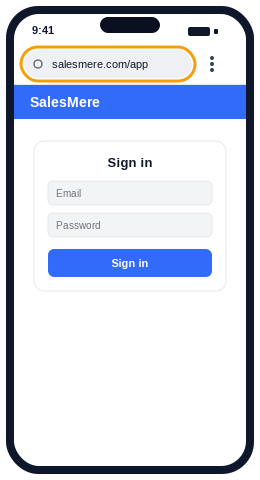
Open the button above on your phone, sign in with your SalesMere account, then follow the steps for your phone.
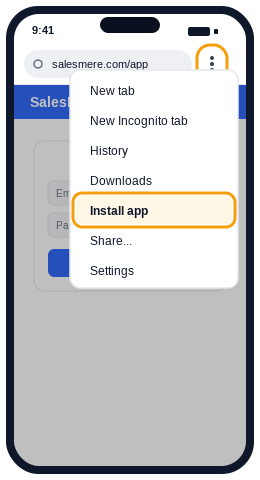
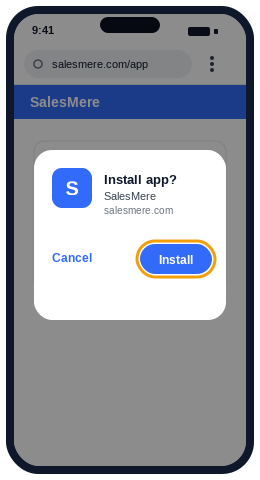
The pictures below are drawings of each step. Your phone may show its menus a little differently, but the words Install app or Add to Home Screen are always what to look for. ছবিগুলো প্রতিটি ধাপের নকশা; আপনার ফোনে মেনু একটু আলাদা দেখাতে পারে, তবে Install app বা Add to Home Screen খুঁজুন।
Android phone
Use Chrome (Edge and Samsung Internet also work).
- Open the SalesMere app button above in Chrome. উপরের বোতামটি Chrome-এ খুলুন।
- Tap Install SalesMere if the bar appears at the bottom. Otherwise tap the three dots (⋮) at the top right. নিচে বার এলে Install চাপুন, নইলে ওপরের তিন-ডট মেনু খুলুন।
- Choose Install app (or Add to Home screen), then Install. Install app বা Add to Home screen বেছে নিন।
- Open SalesMere from the new icon and sign in. নতুন আইকন থেকে SalesMere খুলুন।

iPhone
It must be Safari. Other browsers on iPhone cannot install it.
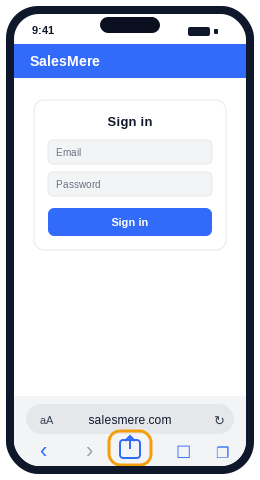
- Open the SalesMere app button above in Safari. উপরের বোতামটি Safari-তে খুলুন।
- Tap the Share button, the square with an arrow. Share বোতাম (তীর-চিহ্নওয়ালা বর্গ) চাপুন।
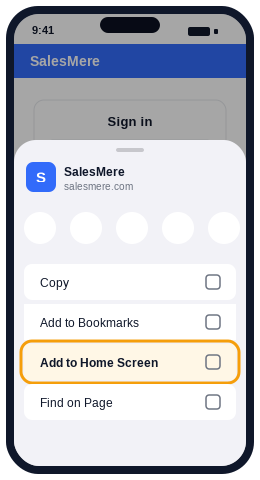
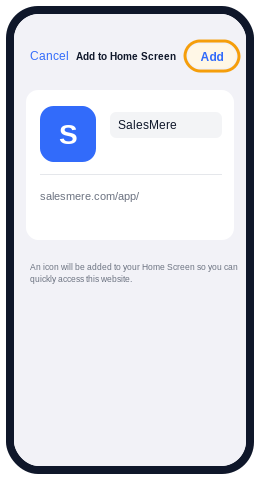
- Choose Add to Home Screen, then Add. Add to Home Screen, তারপর Add চাপুন।
- Open SalesMere from the new icon on your home screen. হোম স্ক্রিনের নতুন আইকন থেকে খুলুন।

Notifications on iPhone work only from the icon on the home screen, and need iOS 16.4 or newer.
Computer
Use Chrome or Edge.
- Open the SalesMere app button above and sign in. উপরের বোতাম থেকে খুলে সাইন ইন করুন।
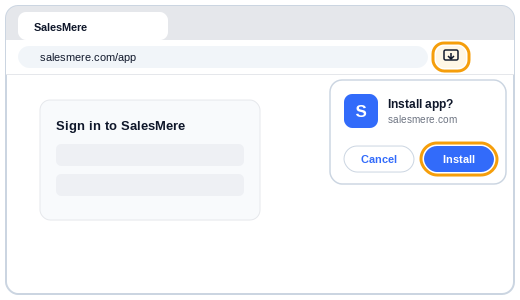
- Click the install icon at the right end of the address bar (a small screen with a down arrow). অ্যাড্রেস বারের ডান দিকের ইনস্টল আইকনে ক্লিক করুন।
- Click Install. SalesMere opens in its own window. Install চাপুন; SalesMere নিজস্ব উইন্ডোতে খুলবে।
Turn on phone notifications.
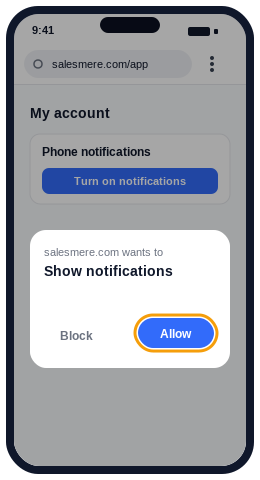
After you sign in, open My account, find Phone notifications and tap Turn on notifications. Your phone asks for permission: tap Allow. SalesMere then sends you a test.
সাইন ইন করে My account-এ Phone notifications থেকে Turn on notifications চাপুন, ফোন অনুমতি চাইলে Allow দিন।